Moving Parts
You can move a part or parts that you select with the following modes or tools:
-
Free Drag
-
Translate
-
Rotate
-
Explode
Moving Parts Freely
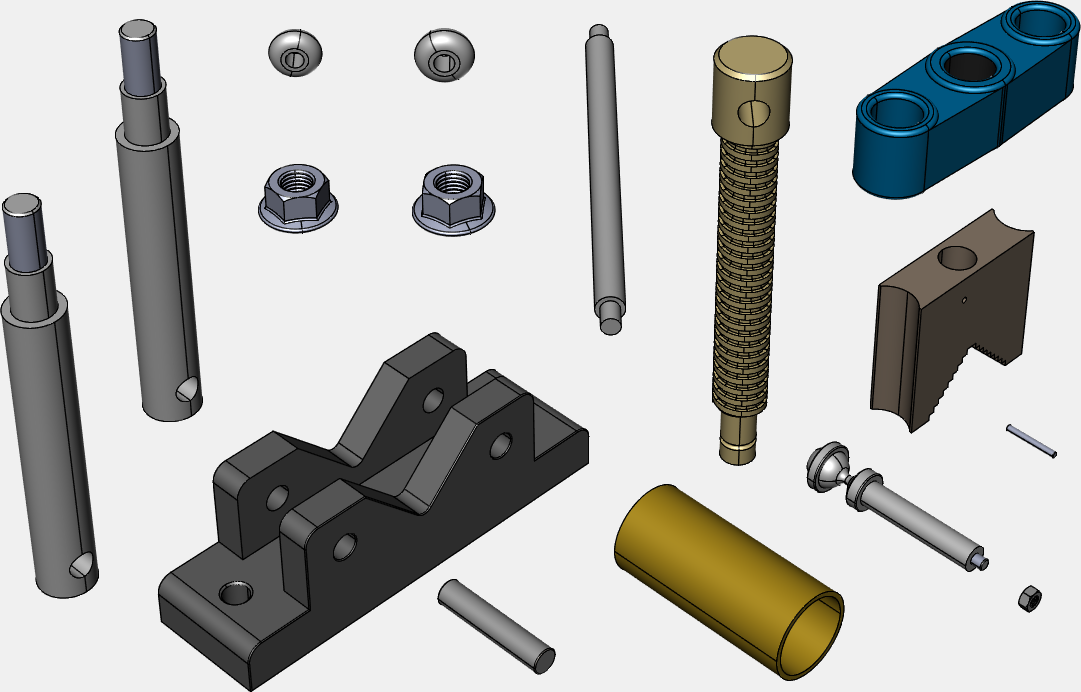
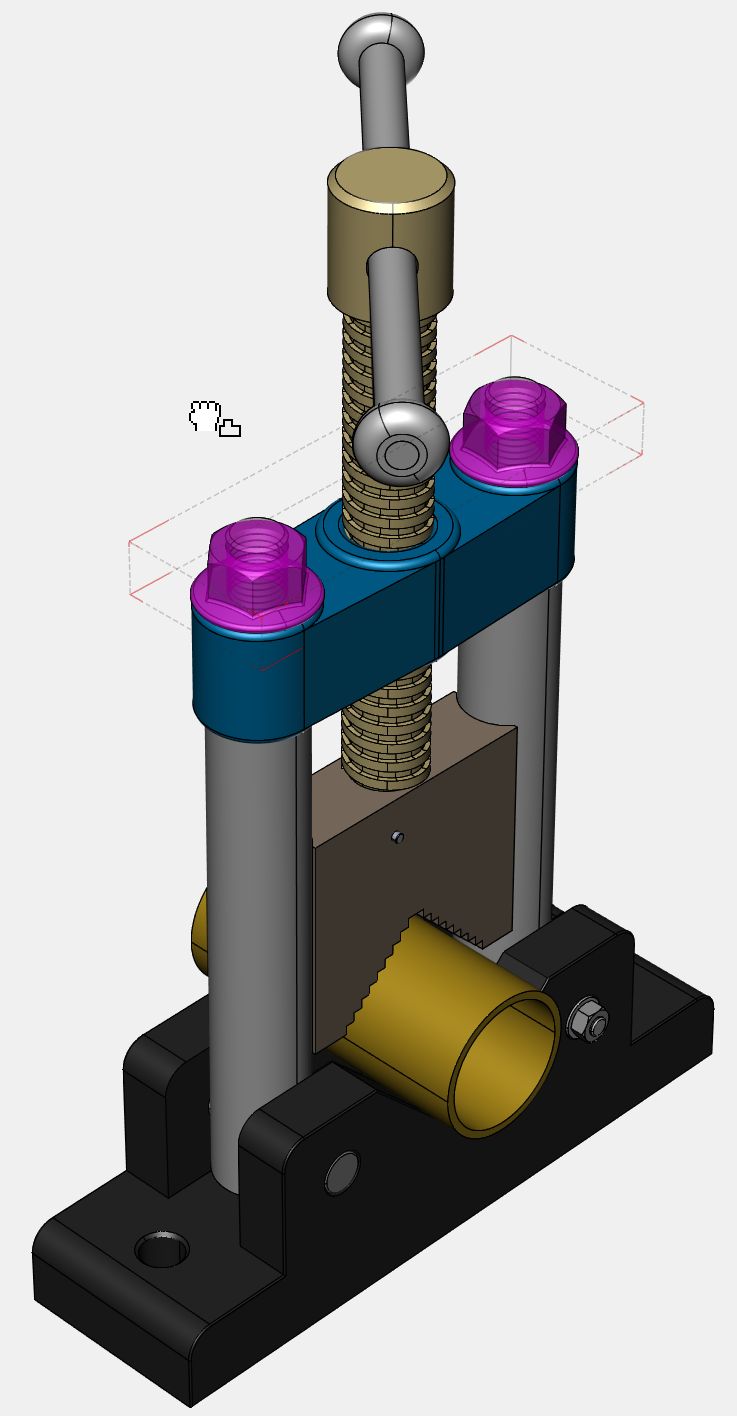
The Free Drag mode allows you to freely move parts any directions.
To Move Parts Freely
-
Click Free Drag from the Transform panel in the 3D Edit tab of the Ribbon.

-
The mouse pointer changes to:

-
Select one or more parts that you want to move.
When positioned for Free Drag, the mouse pointer changes to: 
-
Drag the selected parts to any space.
-
To confirm the moved positions of the selected parts, do one of the following:
-
Click at blank area in view the viewport.
-
Press Esc key.
-

|
|
The Free Drag mode persists until you switch to another mode. |

Translating Parts
The Translate mode allows you to move parts in 3D space.
-
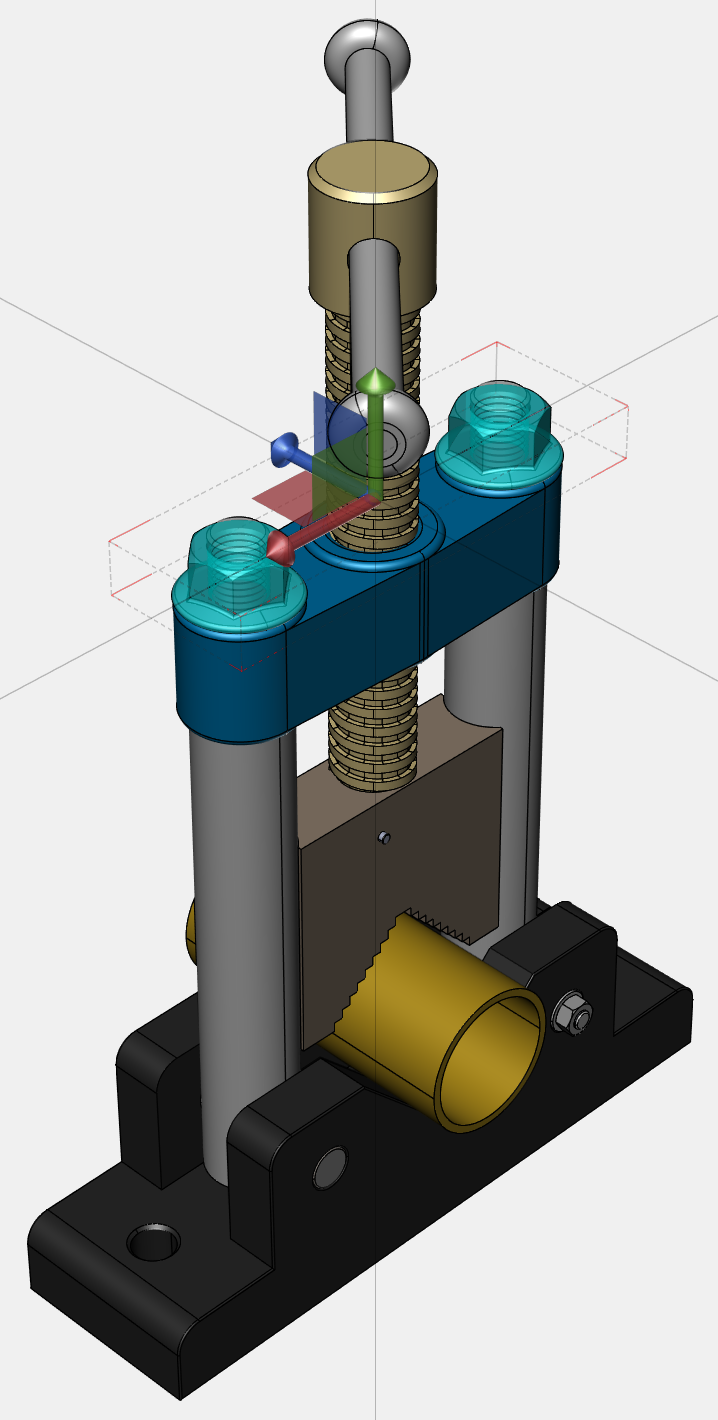
When a part is selected, translation will be based on the local axes. Thus, that triad’s orientation may look different from that of the viewport’s triad.

-
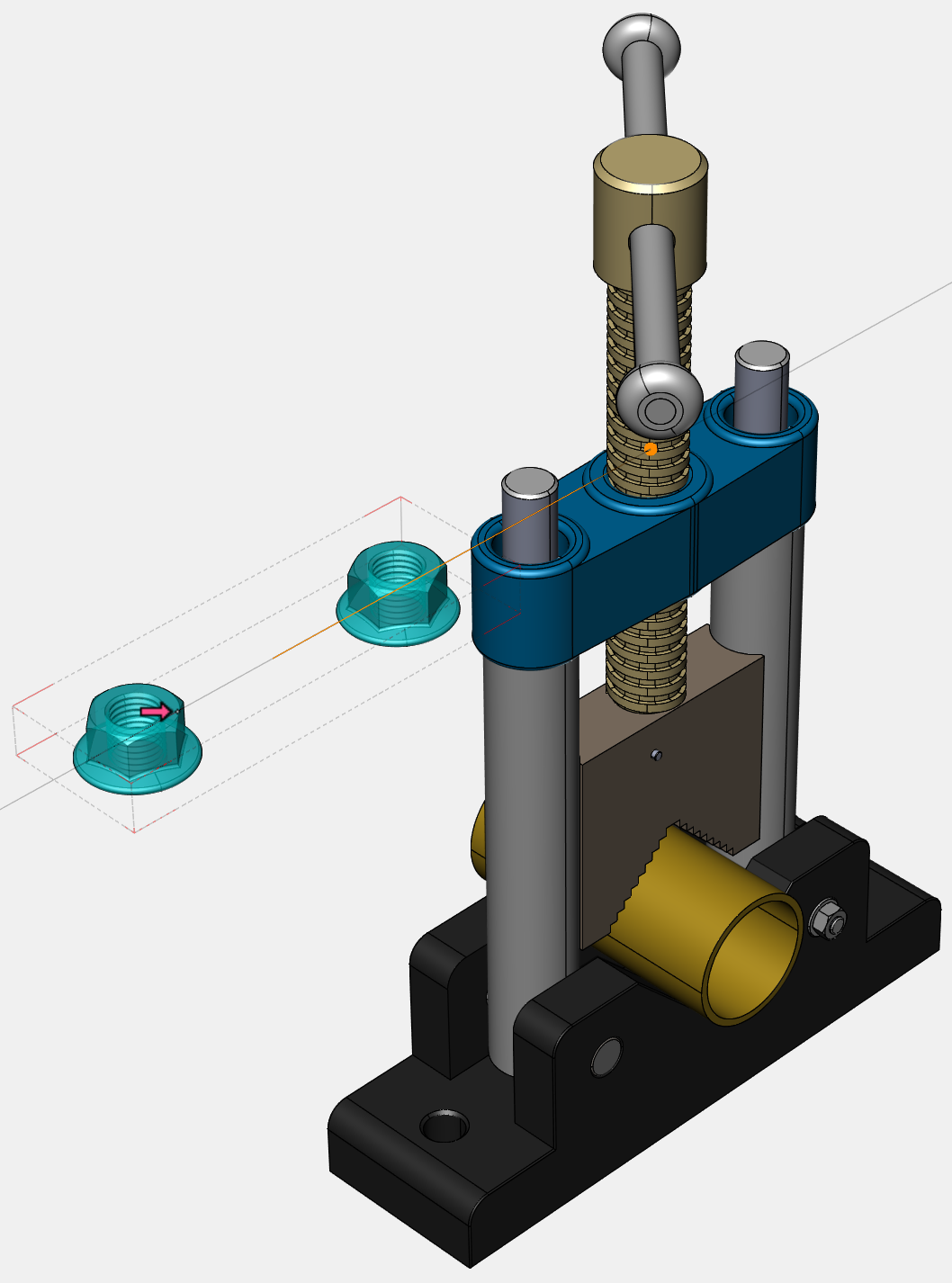
When more than one parts are selected, translation will be based on the world axes.
To Translate parts
-
Click Translate from the Transform panel in the 3D Edit tab of the Ribbon.

-
The mouse pointer changes to:

-
Select one or more parts that you want to translate.
When positioned for Free Drag, the mouse pointer changes to: 
-
A triad control (X, Y, Z) and the extension lines from it appear.
-
Do one of the following:
-
To move the parts along an axis, drag on a triad control axis. As you drag, a tracing path line in light orange indicates the linear displacement.
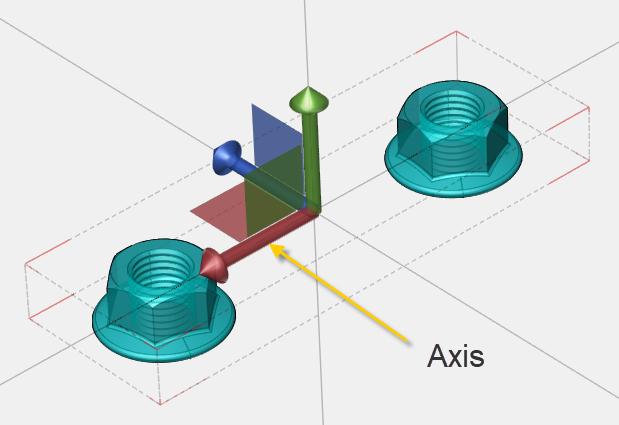
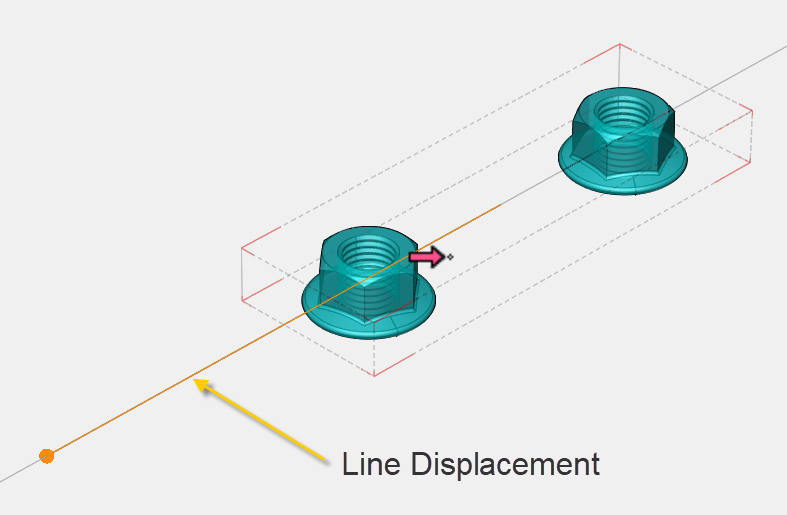
-
To move parts along a plane, drag a triad control web (the colored square region between two axes). As you drag, a tracing rectangle area indicates the linear plane displacement.
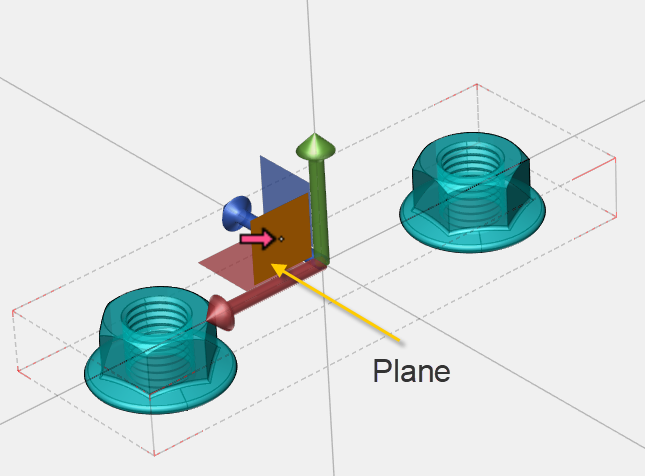
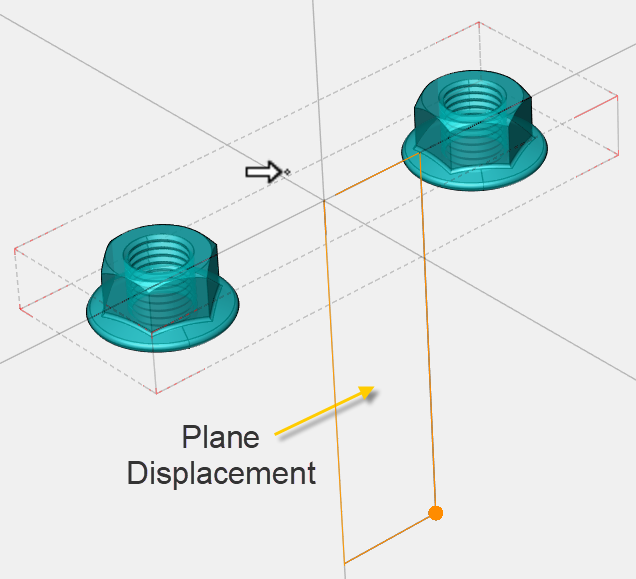
-
-
To confirm the moved positions of the selected parts, do one of the following:
-
Click at blank area in the viewport.
-
Press Esc key.
-
|
|
The Translate mode persists until you switch to another mode. |
Rotating Parts
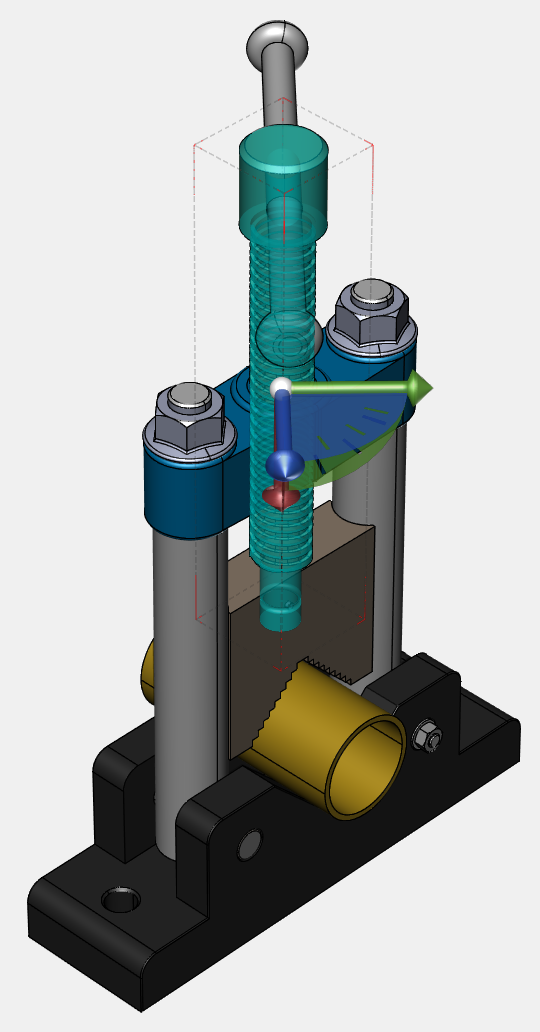
The Rotation mode allows you to rotate parts in 3D space.
-
When a part is selected, rotation will be based on the local axes. Thus, that triad’s orientation may look different from that of the viewport’s triad.
-
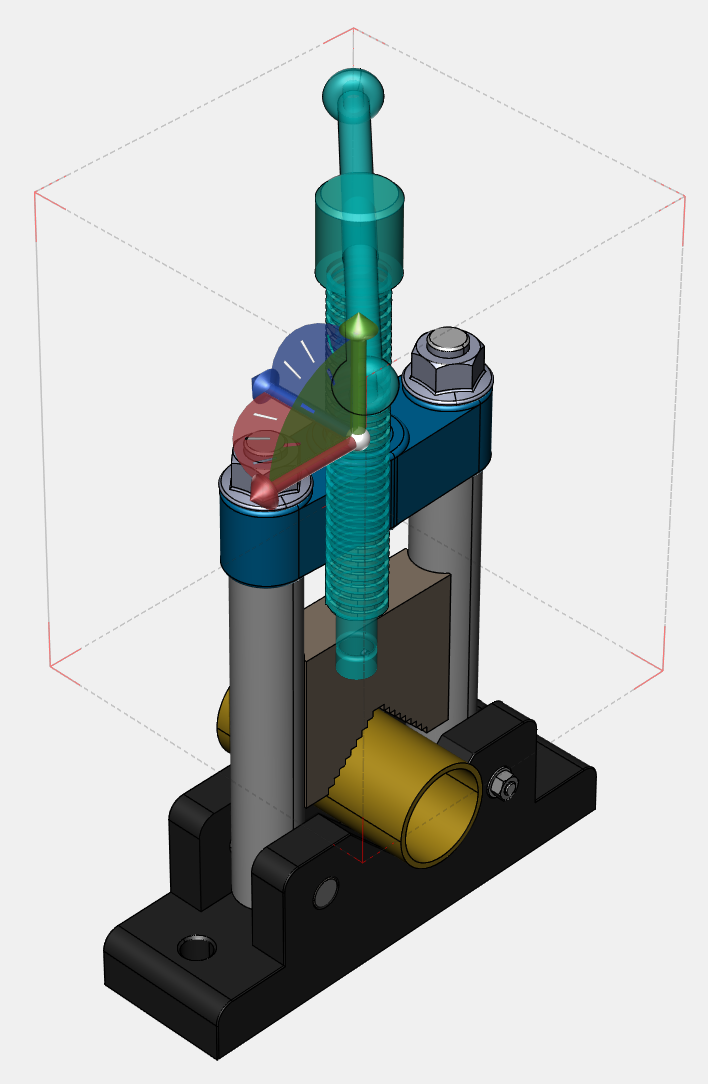
When more than one parts are selected, translation will be based on the world axes.
To Rotate Parts
-
Click Rotate from the Transform panel in the 3D Edit tab of the Ribbon.

-
The mouse pointer changes to:

-
Select one or more parts that you want to rotate.
When positioned for Free Drag, the mouse pointer changes to: 
-
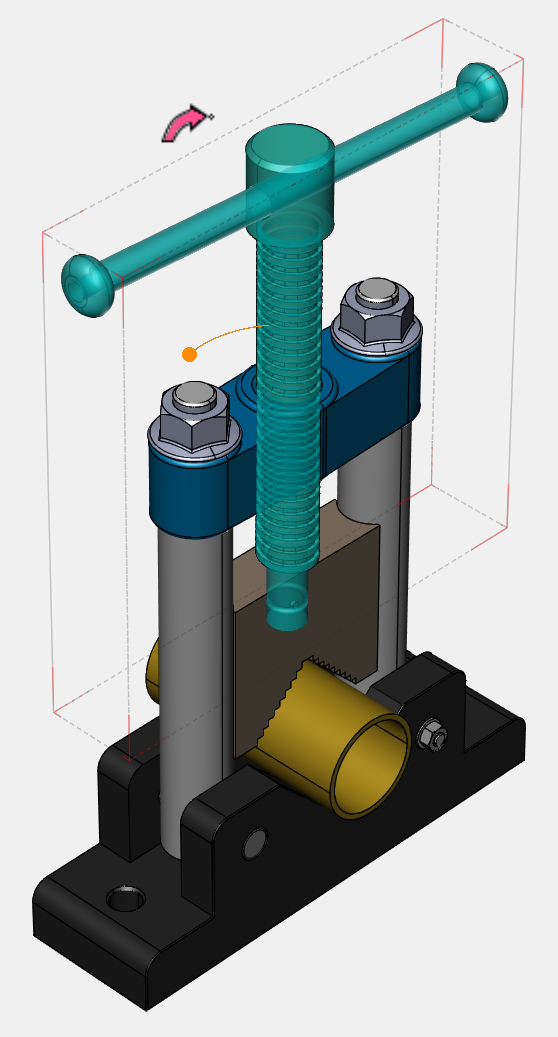
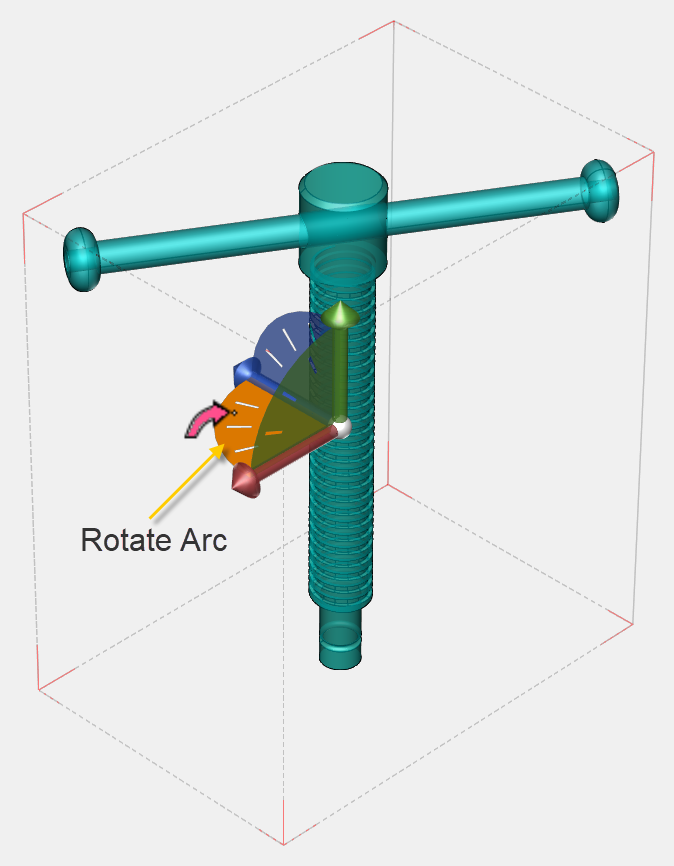
The Rotate controls (X, Y, Z) appear.
-
Do one of the following:
-
To rotate parts along an axis, drag a Rotate arc. As you drag, a tracing curve path indicates in light orange.
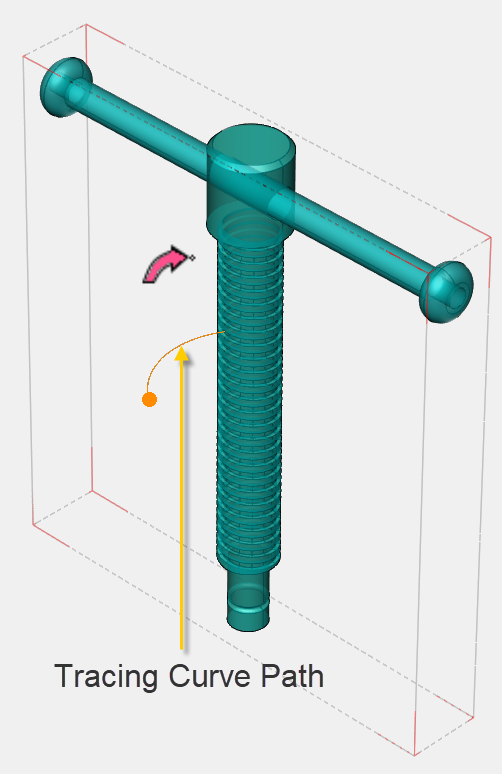
-
To rotate freely (in any direction), drag the center control.
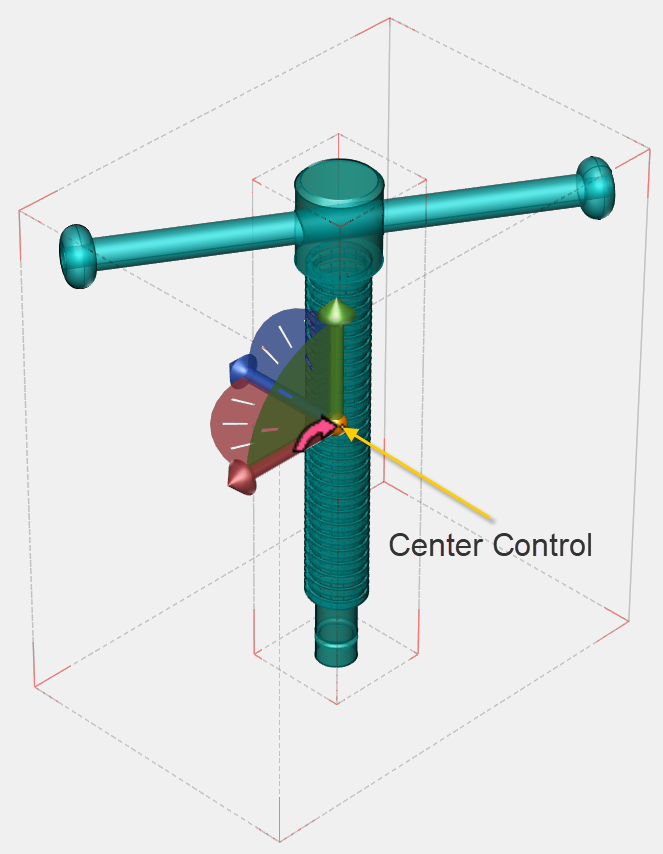
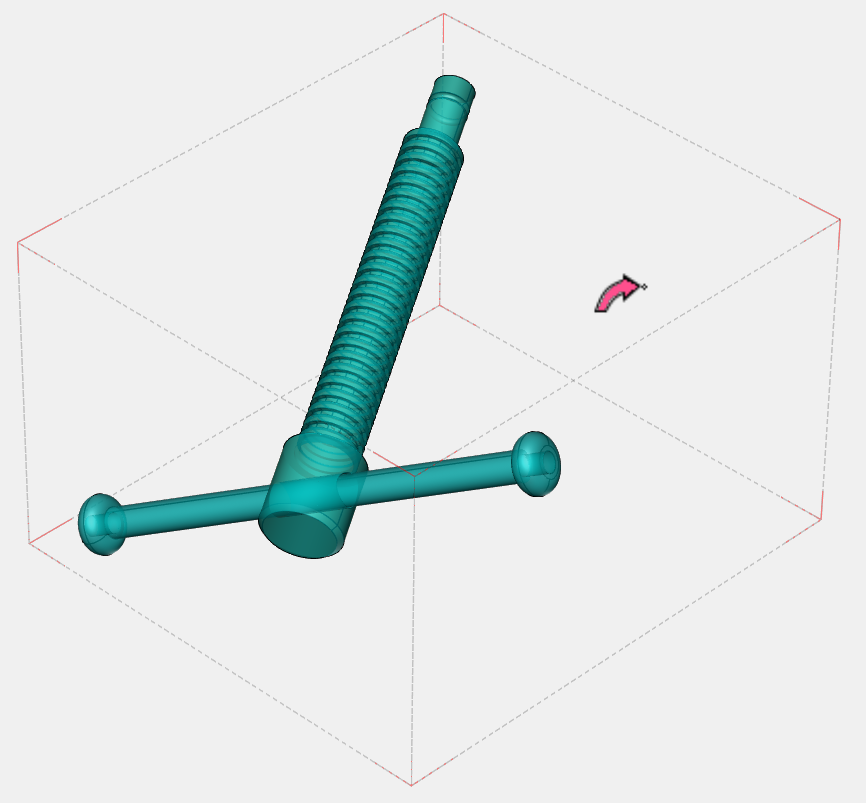
-
-
To confirm the rotated positions of the selected parts, do one of the following:
-
Click empty area in the 3D model view window.
-
Press Esc key.
-
|
|
The Rotate mode persists until you switch to another mode. |
List of Move Mouse Pointers
Here is the list of the mouse pointers for various navigation states.
|
Pointer |
Tool/Mode |
|
|
Free Drag |
|
|
Free Drag ready |
|
|
Translate |
|
|
Translate ready |
|
|
Rotate |
|
|
Rotate ready |